Region capture and quick edit
Select any part of the screen in one drag.Mark it up with an arrow or text, then copy or save it.

What it is
Press one shortcut, drag over any part of the screen, and the capture opens at once in a quick-edit window: add a box, an arrow or text, number the steps or blur a part, then copy it to paste anywhere or save it to your library.
How it works
The screenshots show Laqtta in Arabic. Switch the app to English in Settings and the same buttons read in English.
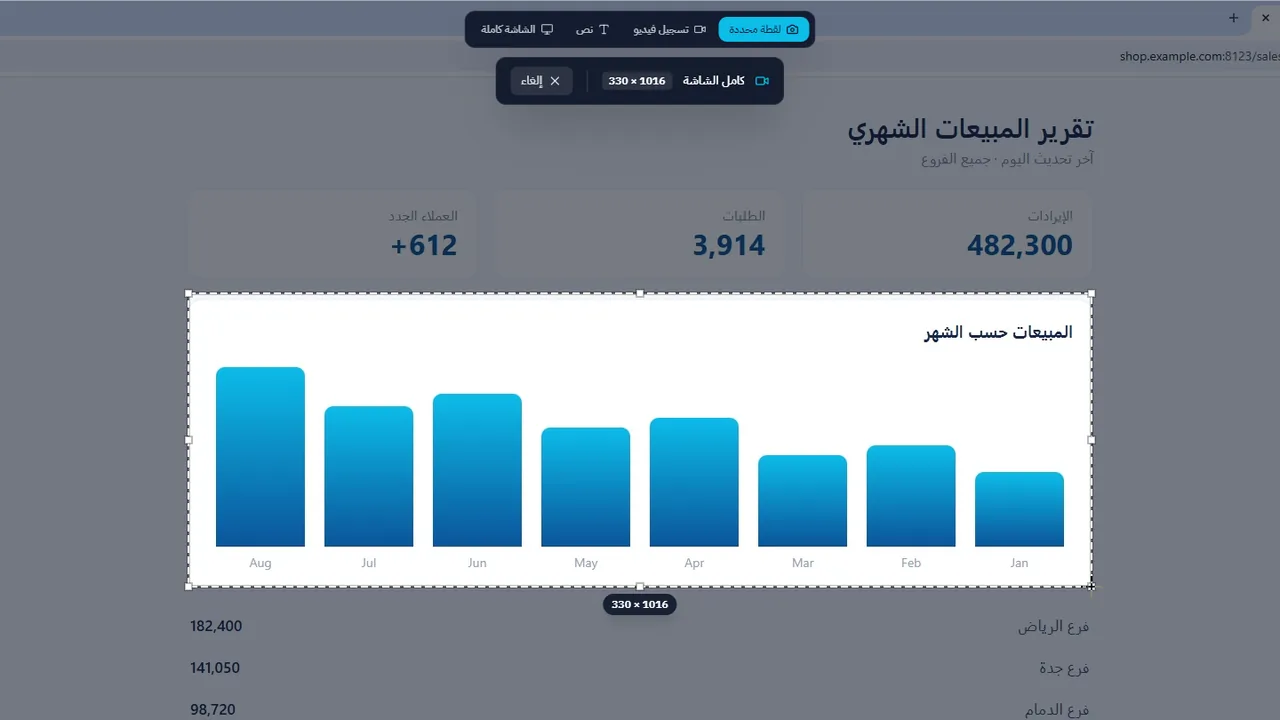
Press Ctrl+Alt+S, or open «Capture» and choose «Selected region». A bar appears at the top of the screen.

Drag over the part you want. Its size in pixels shows under the selection.
The capture opens in the quick-edit window. Pick «Rectangle», «Arrow» or «Text» on the bar and draw on the image.

Press «Copy» to paste it into any app, or «Save» to keep it in the «Library».

When it helps
- Send a colleague the part of the screen with the error and an arrow on it, instead of a long description.
- Box an important figure in a report and paste it into an email to your manager in seconds.
- Capture a step in an app and number it to show a customer where to click.
- Blur a name or a number before pasting the capture into a team chat.
Related features
Download Laqtta
Windows · every feature for 7 days with no sign-up, then free forever